# WordPress Plugin
> Embed StaticForm forms in WordPress using the Gutenberg block, Elementor widget, or shortcode.
The StaticForm WordPress plugin lets you embed StaticForm forms directly into your WordPress site. No HTML editing required. Connect the plugin with an API key and embed forms using the Gutenberg block, the Elementor widget, or a shortcode.
## Requirements
- WordPress 5.8 or later
- PHP 7.4 or later
- An active StaticForm account
## Installation
1. In your WordPress admin, go to Plugins › Add New.
2. Search for "StaticForm", or go directly to [wordpress.org/plugins/staticform](https://wordpress.org/plugins/staticform/).
3. Click Install Now, then Activate.
## Connecting Your API Key
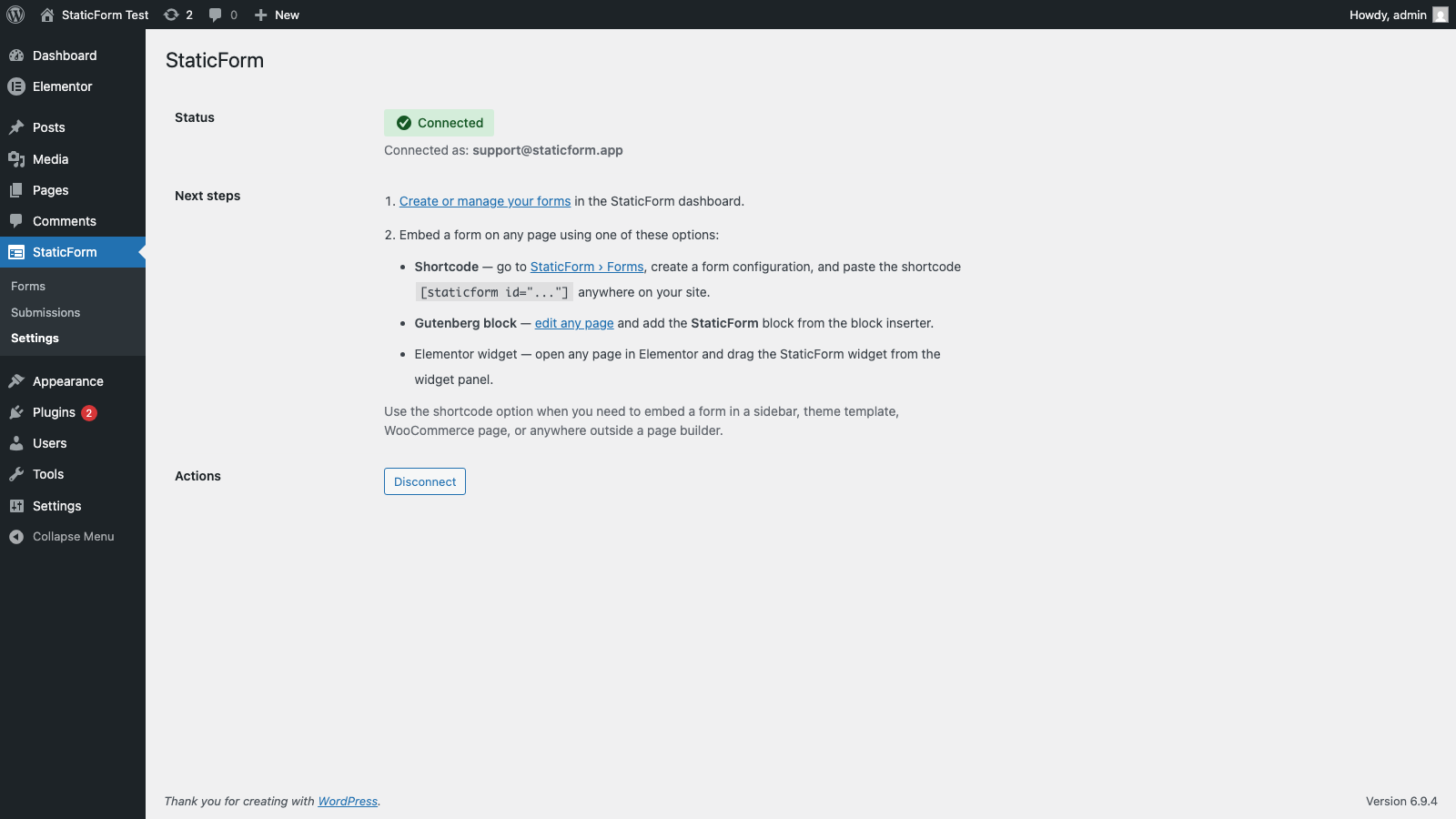
After activation, go to **StaticForm › Settings** in the WordPress admin sidebar.
The settings page shows a direct link to [create an API key](https://app.staticform.app/settings?tab=api-keys&create=wordpress) with the **WordPress** template pre-selected. Click it to open the StaticForm dashboard with the correct permissions already chosen, copy the generated key, and paste it back into the API Key field.
Click Save. The plugin verifies the key and shows a "Connected" status.
**Restricting access to specific forms (recommended):** when creating the key, use the **Form access** field to select only the forms your WordPress site needs. A key scoped to specific forms cannot read or submit any other form in your account, even if someone obtains the key. Leave the field empty only if you need the plugin to access all your forms.
 ## Gutenberg Block
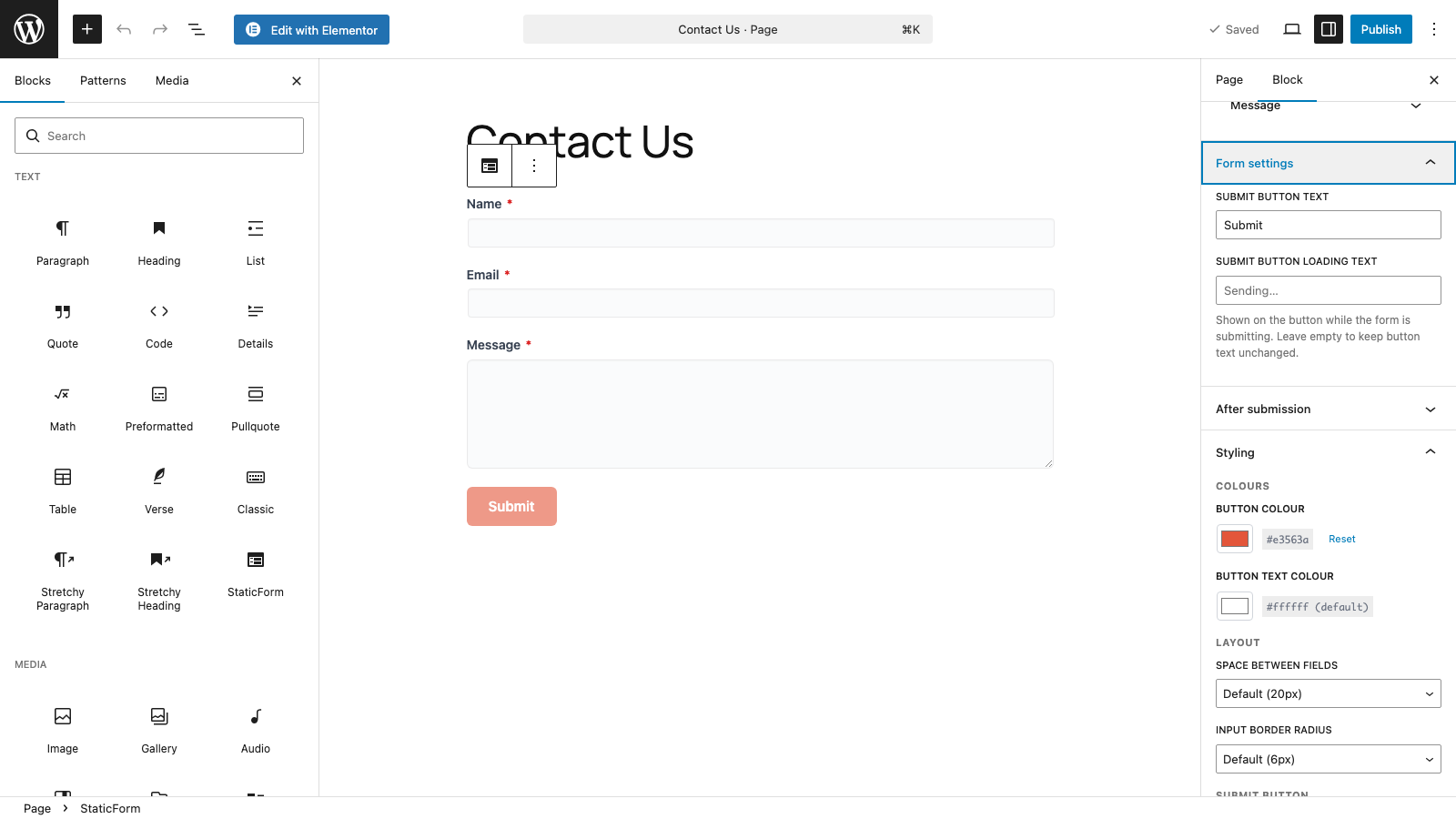
The StaticForm block is available in the WordPress block editor.
1. Open any post or page in the block editor.
2. Click the + icon to open the block inserter and search for "StaticForm".
3. Insert the block.
4. Select a form from the dropdown in the block inspector. Click **Sync form** to pull the latest fields from StaticForm.
The block inspector exposes the following options:
**Styling**
- Button colour and button text colour
- Input border radius and button border radius (set independently)
- Space between fields
- Button width and alignment
- Custom CSS (injected for this embed only)
**Form settings**
- Submit button text
- Button loading text (shown while submitting)
**After submission**
- Replace form with message
- Show banner above form
- Animate submit button (turns green on success)
- Success message text and auto-hide duration
**Captcha**
- Site key for the captcha provider configured on the form in StaticForm
## Gutenberg Block
The StaticForm block is available in the WordPress block editor.
1. Open any post or page in the block editor.
2. Click the + icon to open the block inserter and search for "StaticForm".
3. Insert the block.
4. Select a form from the dropdown in the block inspector. Click **Sync form** to pull the latest fields from StaticForm.
The block inspector exposes the following options:
**Styling**
- Button colour and button text colour
- Input border radius and button border radius (set independently)
- Space between fields
- Button width and alignment
- Custom CSS (injected for this embed only)
**Form settings**
- Submit button text
- Button loading text (shown while submitting)
**After submission**
- Replace form with message
- Show banner above form
- Animate submit button (turns green on success)
- Success message text and auto-hide duration
**Captcha**
- Site key for the captcha provider configured on the form in StaticForm
 ## Elementor Widget
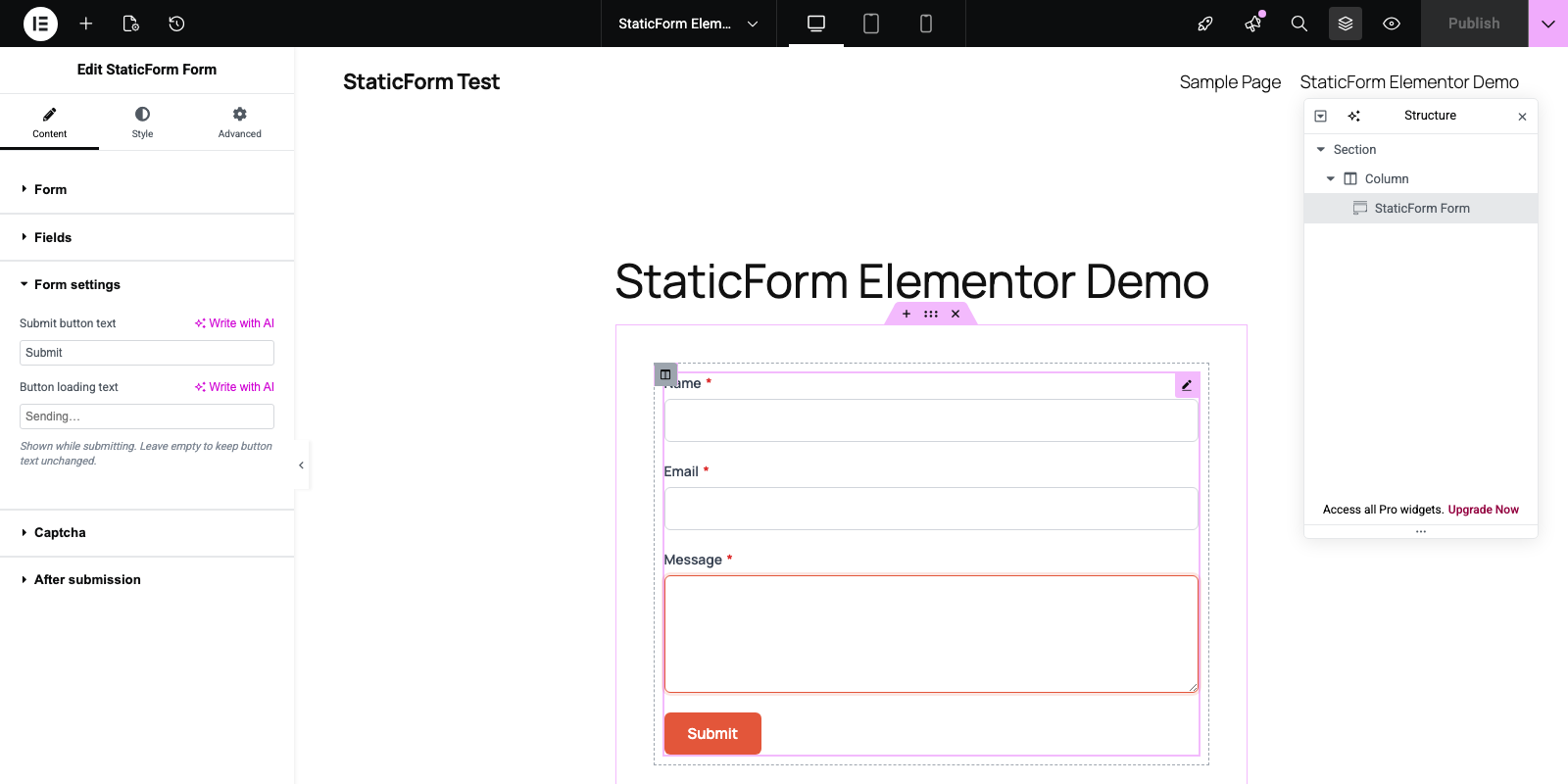
The StaticForm widget is available in the Elementor widget panel under the **General** category.
1. Open a page in Elementor.
2. In the left panel, search for "StaticForm" or find it under General.
3. Drag the widget onto the canvas.
4. Configure it in the left panel.
The widget panel is organized into sections:
**Form:** select the form from the dropdown. Use the **Sync form** button to refresh field data from StaticForm after making changes in the dashboard.
**Fields:** after syncing, each field appears here with controls for label, placeholder, help text, and required toggle. Select and file fields have additional type-specific controls (options list, accepted file types, etc.).
**Form settings:** submit button text and button loading text.
**Captcha:** enter the site key for the captcha provider. The provider itself is configured in StaticForm.
**After submission:** choose between replacing the form with a message, showing a banner above the form, or animating the submit button. Configure the message text and auto-hide duration.
**Style tab: Colors:** button colour and button text colour.
**Style tab: Layout:** input border radius, button border radius, and space between fields.
**Style tab: Submit button:** button width and alignment.
**Advanced tab: Custom CSS:** a CSS code editor with a reference table of available selectors (`.sf-form`, `.sf-label`, `.sf-input`, `.sf-submit`, etc.).
## Elementor Widget
The StaticForm widget is available in the Elementor widget panel under the **General** category.
1. Open a page in Elementor.
2. In the left panel, search for "StaticForm" or find it under General.
3. Drag the widget onto the canvas.
4. Configure it in the left panel.
The widget panel is organized into sections:
**Form:** select the form from the dropdown. Use the **Sync form** button to refresh field data from StaticForm after making changes in the dashboard.
**Fields:** after syncing, each field appears here with controls for label, placeholder, help text, and required toggle. Select and file fields have additional type-specific controls (options list, accepted file types, etc.).
**Form settings:** submit button text and button loading text.
**Captcha:** enter the site key for the captcha provider. The provider itself is configured in StaticForm.
**After submission:** choose between replacing the form with a message, showing a banner above the form, or animating the submit button. Configure the message text and auto-hide duration.
**Style tab: Colors:** button colour and button text colour.
**Style tab: Layout:** input border radius, button border radius, and space between fields.
**Style tab: Submit button:** button width and alignment.
**Advanced tab: Custom CSS:** a CSS code editor with a reference table of available selectors (`.sf-form`, `.sf-label`, `.sf-input`, `.sf-submit`, etc.).
 ## Forms Page
Go to **StaticForm › Forms** in the WordPress admin to create reusable form configurations. Each configuration ties a StaticForm form to a set of styling and behavior options, and gives you a shortcode you can paste anywhere.
Options available per configuration:
- Accent color and button text color
- Input and button border radius
- Space between fields
- Button width, alignment, and loading text
- Submit button label
- After-submission behavior (replace with message, banner, or animate button)
- Captcha site key
- Field label, placeholder, and help text overrides
Once saved, a shortcode is generated for that configuration. The same form can have multiple configurations with different settings for different pages.
## Shortcode
The shortcode works in any post, page, text widget, or theme template that supports shortcodes.
```
[staticform id="your-config-id"]
```
The `id` comes from the shortcode shown on the **StaticForm › Forms** page after saving a configuration. The shortcode only accepts `id`. All other options are set in the form configuration.
Use the shortcode when embedding forms in sidebars, theme templates, WooCommerce pages, or anywhere outside a page builder.
## Forms Page
Go to **StaticForm › Forms** in the WordPress admin to create reusable form configurations. Each configuration ties a StaticForm form to a set of styling and behavior options, and gives you a shortcode you can paste anywhere.
Options available per configuration:
- Accent color and button text color
- Input and button border radius
- Space between fields
- Button width, alignment, and loading text
- Submit button label
- After-submission behavior (replace with message, banner, or animate button)
- Captcha site key
- Field label, placeholder, and help text overrides
Once saved, a shortcode is generated for that configuration. The same form can have multiple configurations with different settings for different pages.
## Shortcode
The shortcode works in any post, page, text widget, or theme template that supports shortcodes.
```
[staticform id="your-config-id"]
```
The `id` comes from the shortcode shown on the **StaticForm › Forms** page after saving a configuration. The shortcode only accepts `id`. All other options are set in the form configuration.
Use the shortcode when embedding forms in sidebars, theme templates, WooCommerce pages, or anywhere outside a page builder.