The form backend that blocks spam.
Add a form to any site in minutes. Spam gets filtered automatically. Every real submission gets routed to your inbox, Slack, Google Sheets, or wherever your team works.
7-day free trial. No payment method required.
Incoming submissions
StaticForm
10+ spam checks
Delivered to
 Slack
Slack Discord
 Sheets
 Notion
Spam never counts against your plan
EU data storage, GDPR compliant
5 minutes from signup to live form
Spam filtering
Advanced checks on every submission. Bots blocked before they reach your inbox or count against anything.
Observability
Every action logged with its result and error detail. Failure alerts and one-click retry from the dashboard.
Fair pricing
Flat monthly fee. Submissions are never metered, so spam and traffic spikes never inflate your bill.
Easy integration
Generated snippet, helper script, and an AI prompt ready to hand to Claude or ChatGPT. Set up in minutes.
You add a form. The spam starts.
Bots scan for form endpoints constantly. Within days of going live, yours gets hit. Around 70% of all form submissions are spam. They land in your inbox the same as real messages, and you sort through them one by one.
Your inbox, three days after the form went live.
Email notification
550 Mailbox does not exist
Webhook → CRM
Connection timed out after 10s
Email notification
550 Mailbox does not exist
Webhook → CRM
HTTP 502 Bad Gateway
Email notification
550 Mailbox does not exist
Every one of those was a real lead. Nobody noticed for days.
You have no idea if it's even working.
The form looks fine. But did the email actually send? Did the webhook reach its destination? Did anything break while you were away? You don't know. Nobody tells you. You only find out when a customer complains they never heard back.
If you manage websites for clients, this is worse. Weeks of missed leads can go unnoticed. By the time it surfaces, the submissions are gone and there is no way to recover them.
Fighting spam, so you don't have to.
StaticForm sits between the internet and your form. Every submission is checked automatically. Most spam is caught in milliseconds. The bots move on. Your inbox only sees real people.
10+ checks. Every submission, no exceptions.
Bots do not announce themselves. StaticForm runs every submission through a full filter stack the moment it hits your endpoint. Most spam is caught in under 50 milliseconds, silently, before any notification is sent.
Honeypot trap
Hidden fields that bots fill in, humans never see
IP reputation
Cross-checks the sender IP against known spam databases
Datacenter IP
Flags submissions from cloud servers and VPS ranges
Disposable email
Rejects temporary and throwaway addresses
Domain age
Newly registered domains are scored higher risk automatically
Email domain validation
Verifies MX records exist and the mail server is not on a blocklist
Content analysis
Matches known spam phrases, URLs, and unsubscribe patterns
Cold pitch detection
Identifies unsolicited sales and SEO outreach by pattern
All checks run in parallel on every submission, before any notification is sent.
The bot thinks it worked.
When a submission is caught, StaticForm returns a standard success response. The bot marks it as delivered and moves on to the next target.
If it knew it failed, it would adapt: try a different IP, rotate its email address, tweak the message. We do not give it that information. It leaves believing it won. It did not.
Your spam dashboard. Your rules.
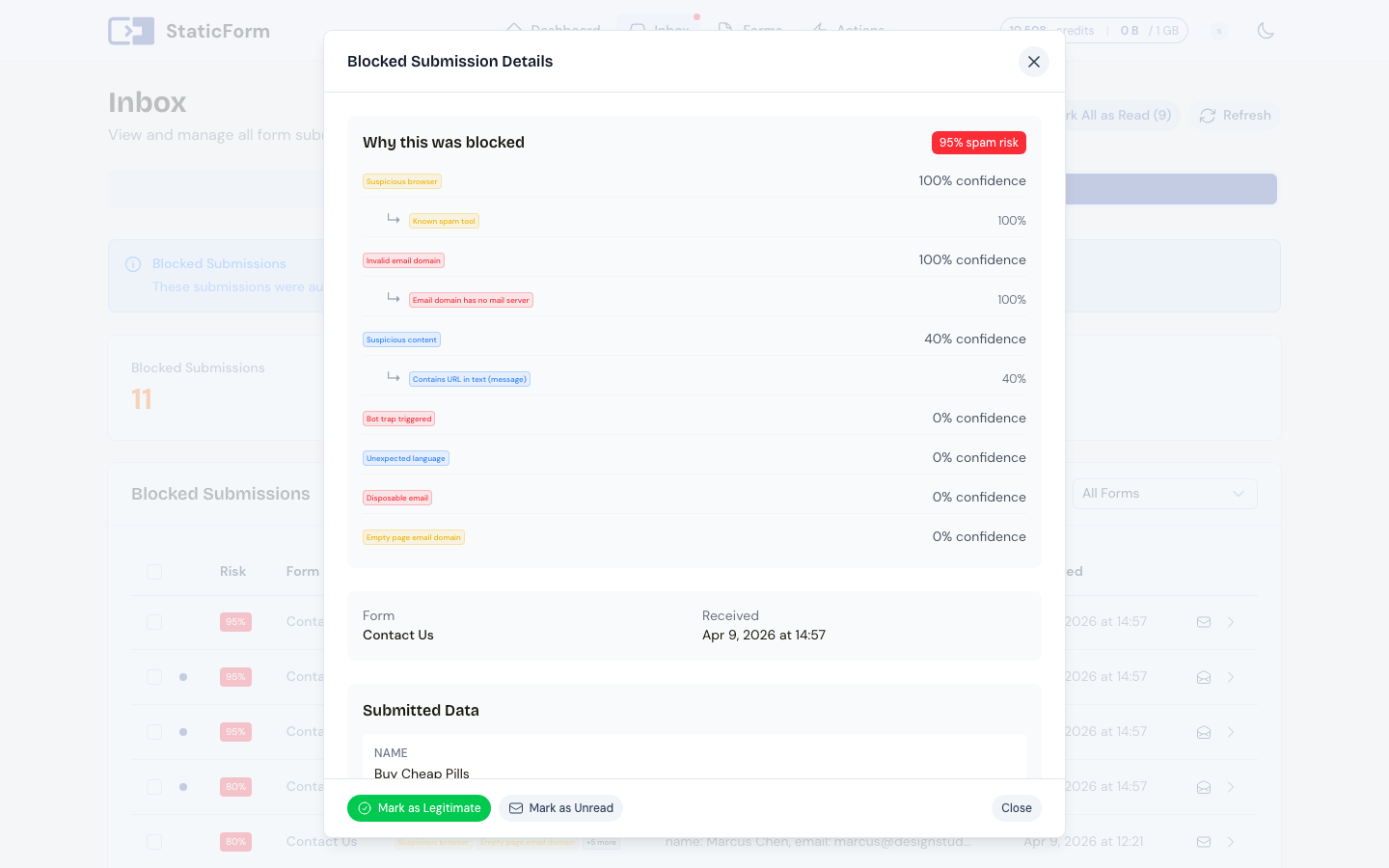
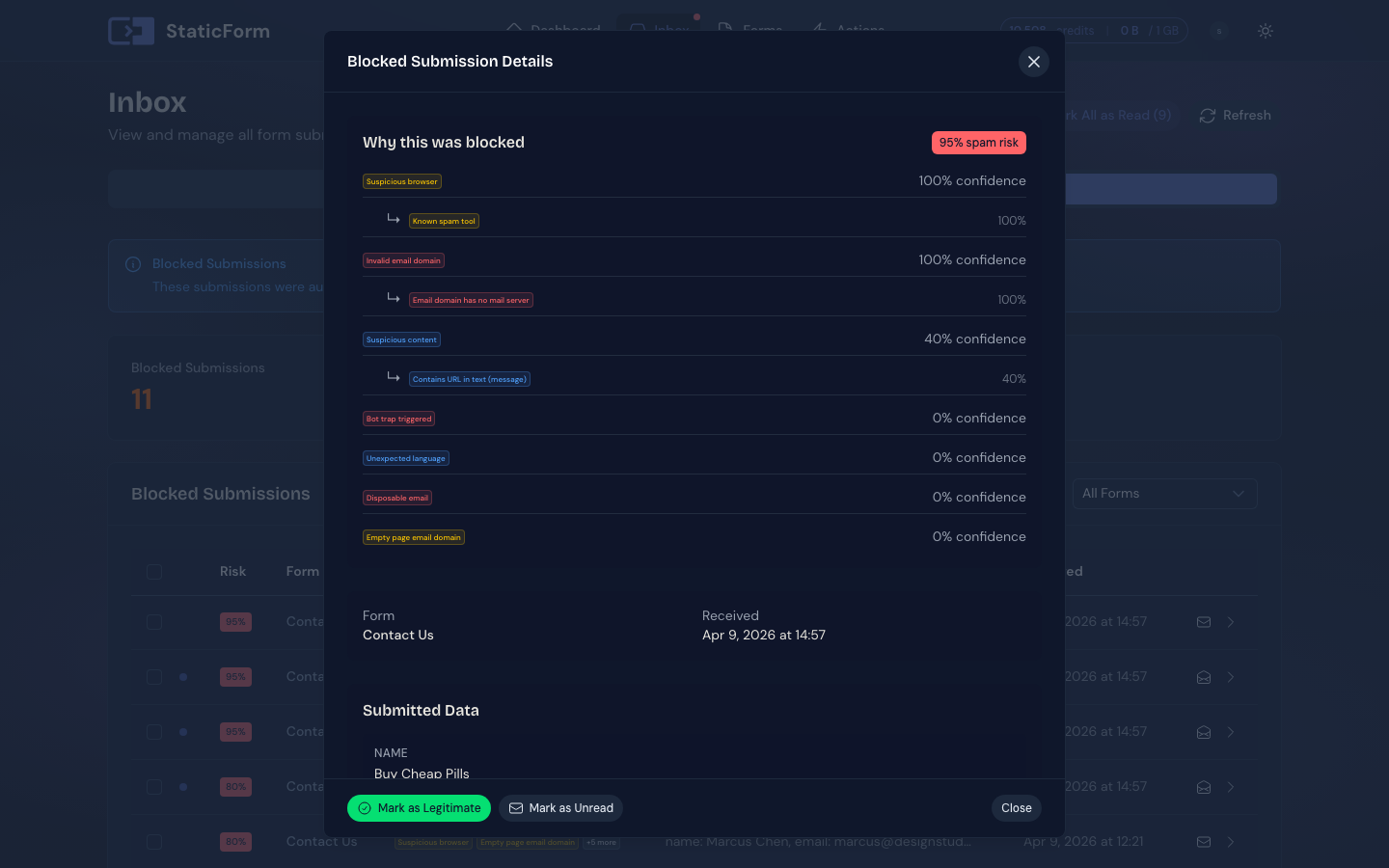
Nothing is deleted silently. Every blocked submission is logged with the exact check that caught it. You stay in control.
Blocked reason per submission
See exactly which check flagged each submission. IP reputation, disposable email, cold pitch: all logged with detail.
Feedback loop
Mark any real submission as spam, or any blocked one as legitimate. Every correction improves filtering going forward.
One-click recovery
False positive? Recover the submission from your spam folder with one click. It gets delivered as if it had never been blocked.
Know before your customer does.
Every submit action is logged with its result. You see exactly what ran, what failed, and the reason. If something breaks, StaticForm notifies you immediately so you can fix it before anyone notices.
Every submission is stored in your inbox regardless of whether the actions succeed. Nothing is ever lost, even when the email provider goes down or a webhook times out.
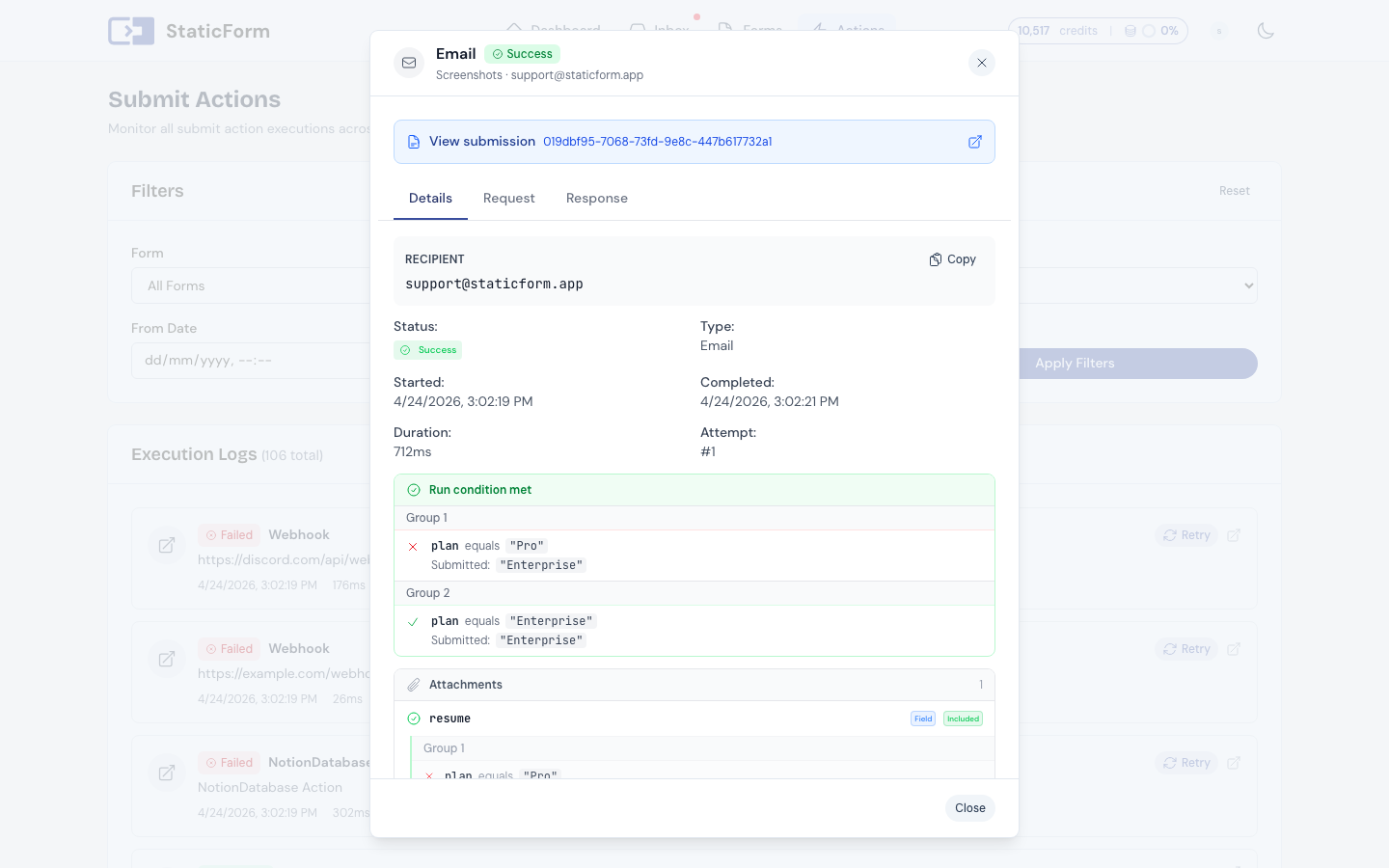
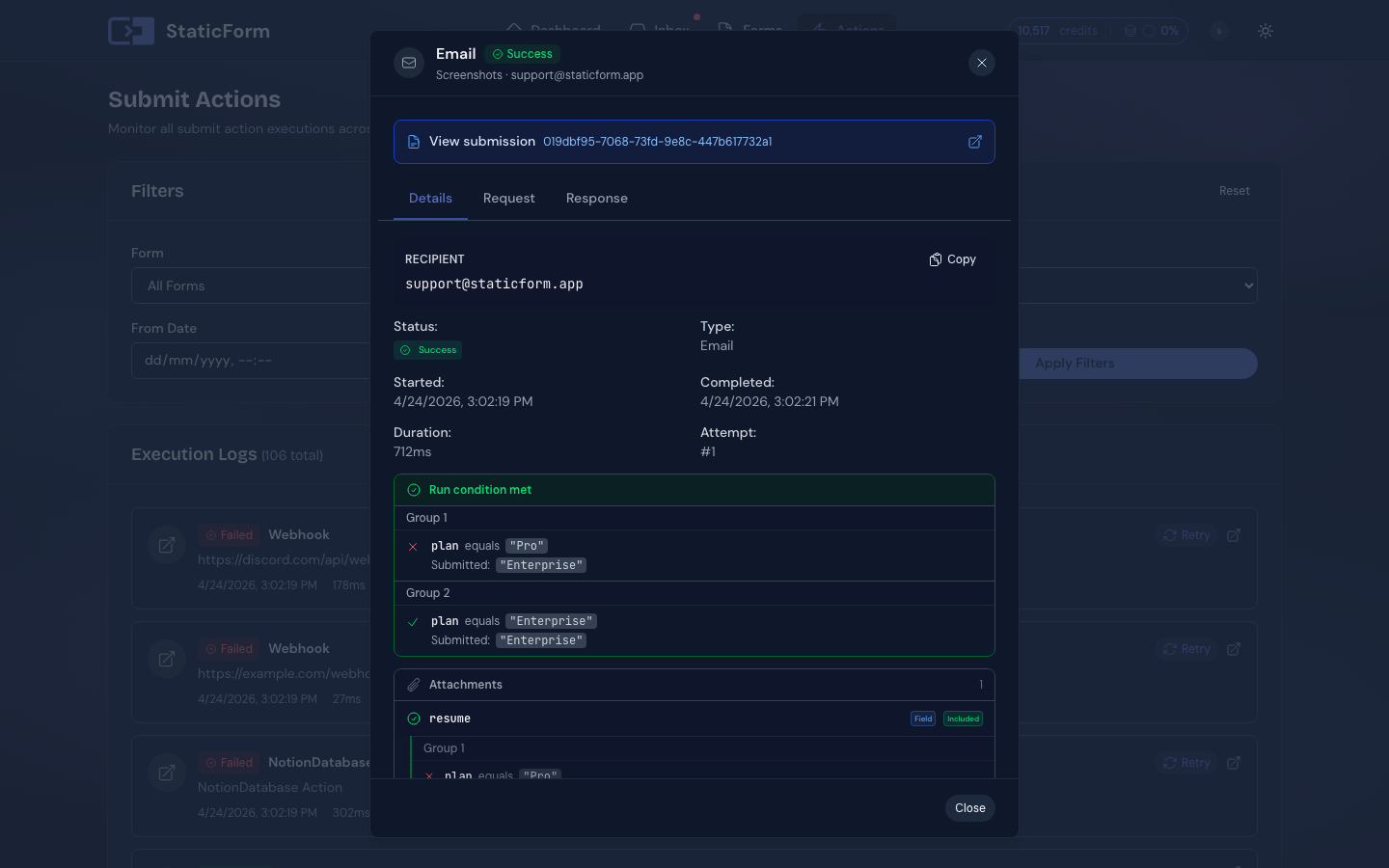
Click to enlarge
Real submissions get acted on, automatically.
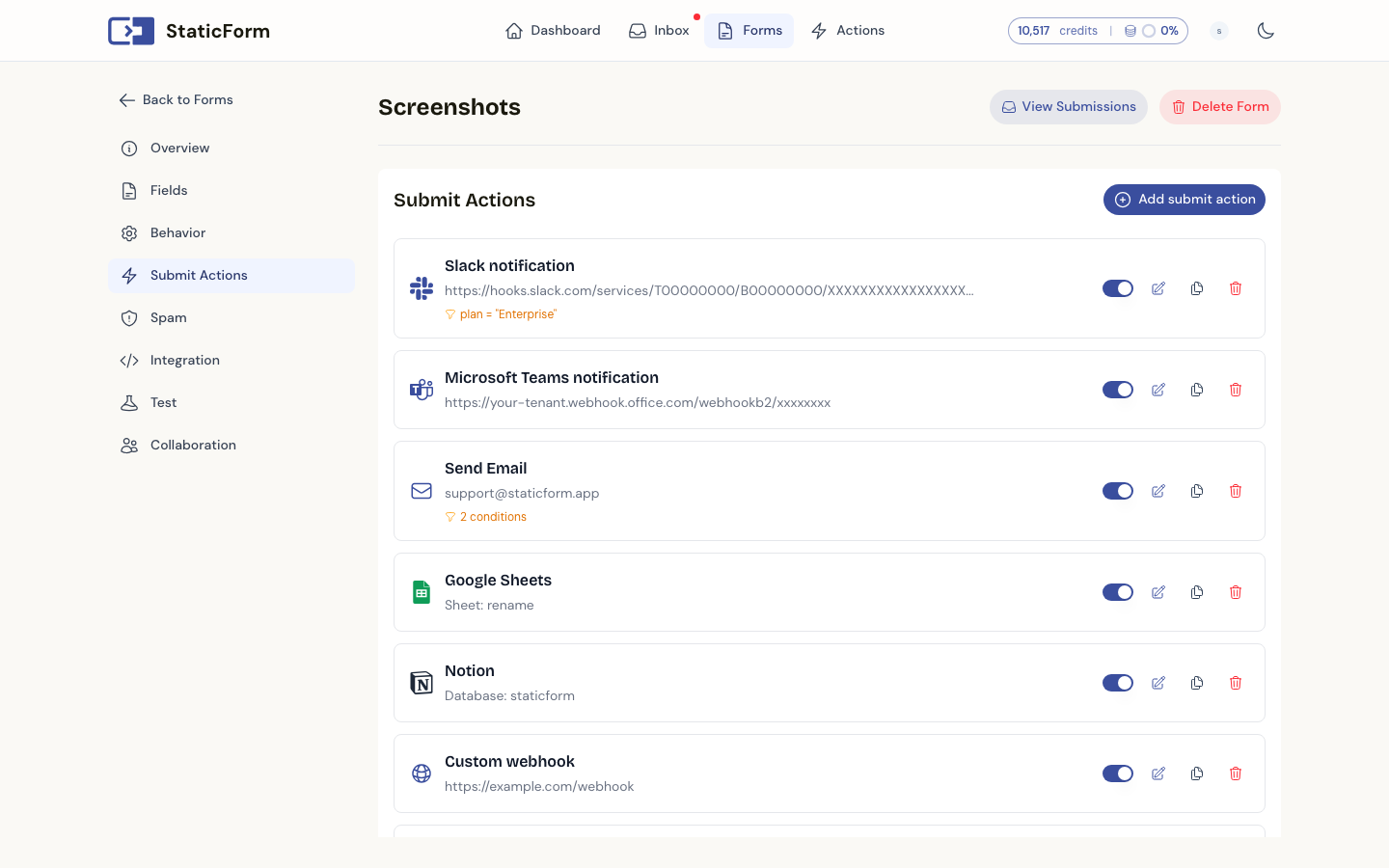
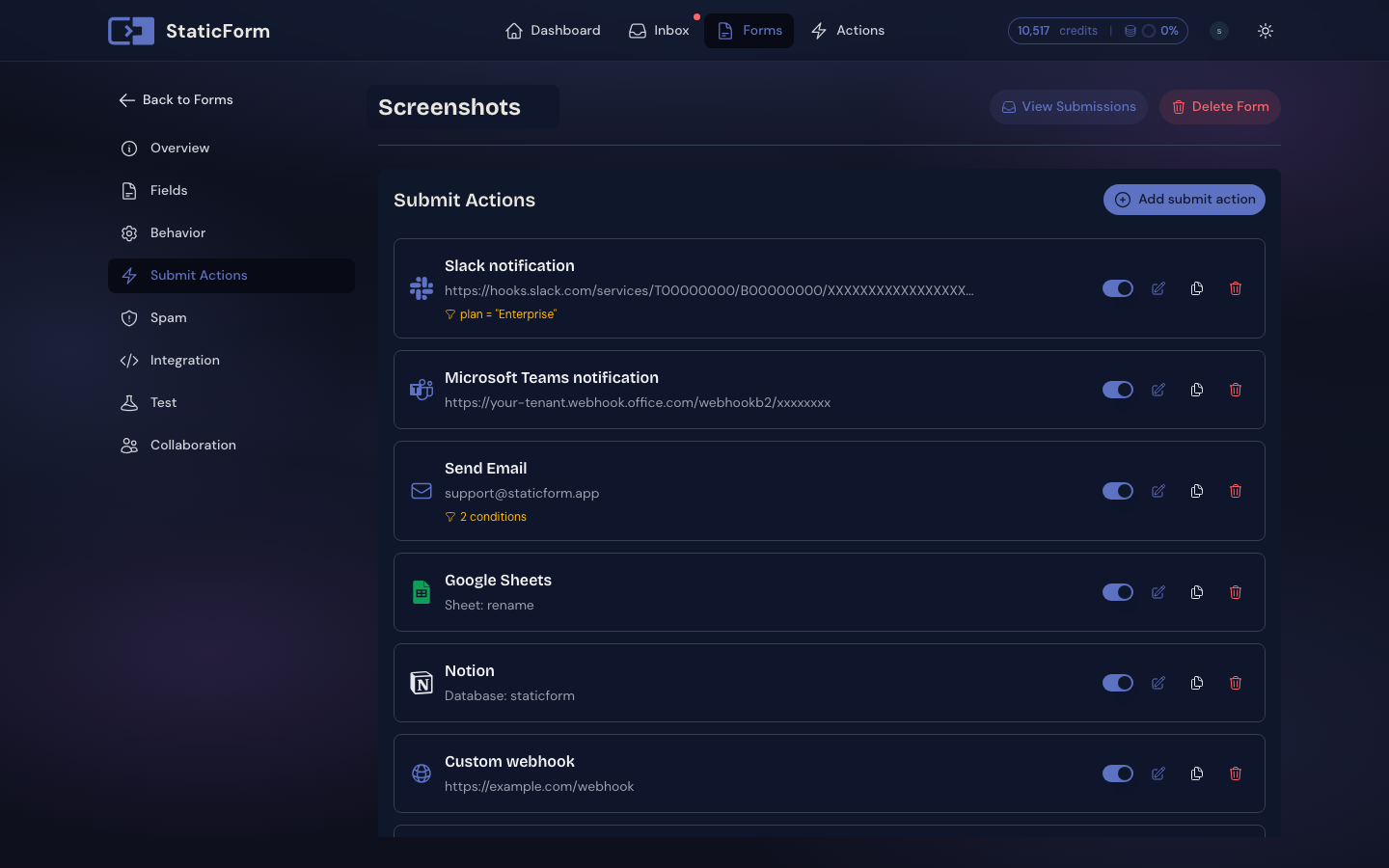
StaticForm does not stop at blocking spam. For every submission that passes the filter, you decide exactly what happens next. Your leads go where your team actually works, the moment they arrive.
Email action
Build your email action with a visual editor. Notify yourself, send a confirmation to the submitter, or forward leads to a client. Use field variables like {{name}} and {{message}} in the subject or body.
Webhook
POST to any URL. Trigger Zapier flows, update your database, ping an internal API. Works with anything that accepts HTTP.
Slack
Post to any Slack channel the moment a lead comes in. Use field values to build the message however you like.
Discord
Send lead details straight to a Discord channel. Useful for community projects, teams, or just staying in the loop.
Google Sheets
Every submission appended as a new row automatically. Share the sheet with your team and your leads are always up to date.
Notion
Create a new database entry for each lead in Notion. Every field maps to a property so your CRM stays current without any manual work.
Multiple actions per form. Run all of them on every submission, or add conditions.
Make your actions smart.
Add a condition to any action and it only runs when the submission matches. Your form stops being a collection box and starts making decisions.
- Only notify Slack when the budget field is above a threshold
- Skip the spreadsheet for quick questions, only log serious enquiries
- Route to a different email address based on what the visitor selected
- Fire a different webhook per service type or enquiry category
Example condition
action
Post to Slack #salescondition
budgetis greater than5000
From signup to live:
about 5 minutes.
Create a form, pick your integration method, ship. Works on any host, any framework.
Set up where your real leads land
Choose your fields, pick where real submissions go: email, Slack, Sheets, or a webhook. Copy the endpoint. About 2 minutes.
Integrate your way
Plain HTML, JS helper, AI prompt, or WordPress plugin. All four approaches are covered below.
Ship and stay in control
Spam gets filtered. Submissions are stored. Notifications go out, and every action is logged. Whether it's your project or a client site, you'll know exactly what happened.
Integration methods
Plain HTML
Set action= on your form. No JS, no build tools. Works anywhere.
JS helper script
One script tag. Handles CAPTCHA, inline validation errors, and loading states automatically.
AI prompt
Paste one prompt into Claude, Cursor, or ChatGPT. Get a complete integration in under a minute.
WordPress plugin
Install from the WordPress directory. No code needed.
The backend you don't have to build
Inbox, spam filtering, submit actions, and logs. Configure your form, copy the endpoint, paste it into your HTML.
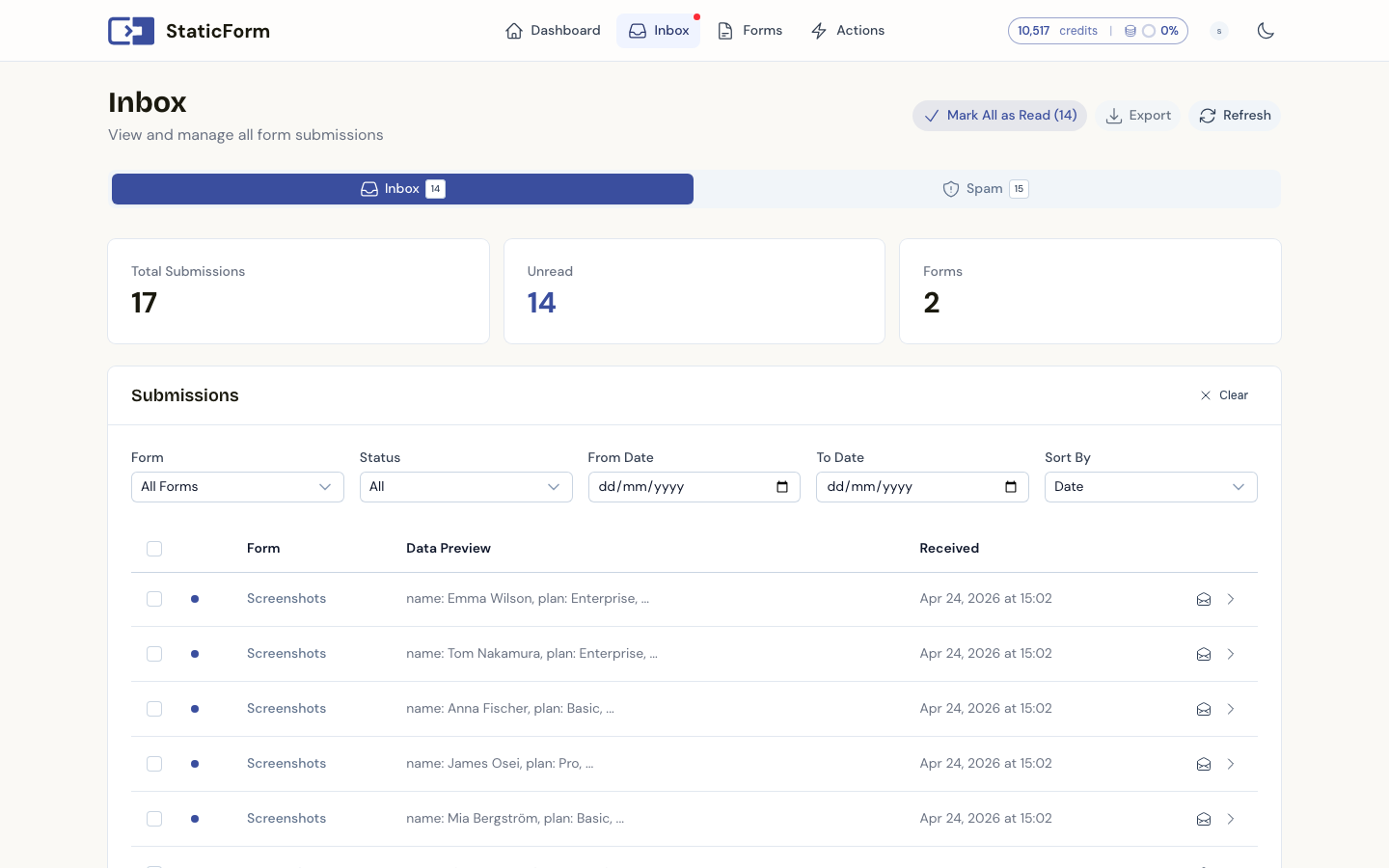
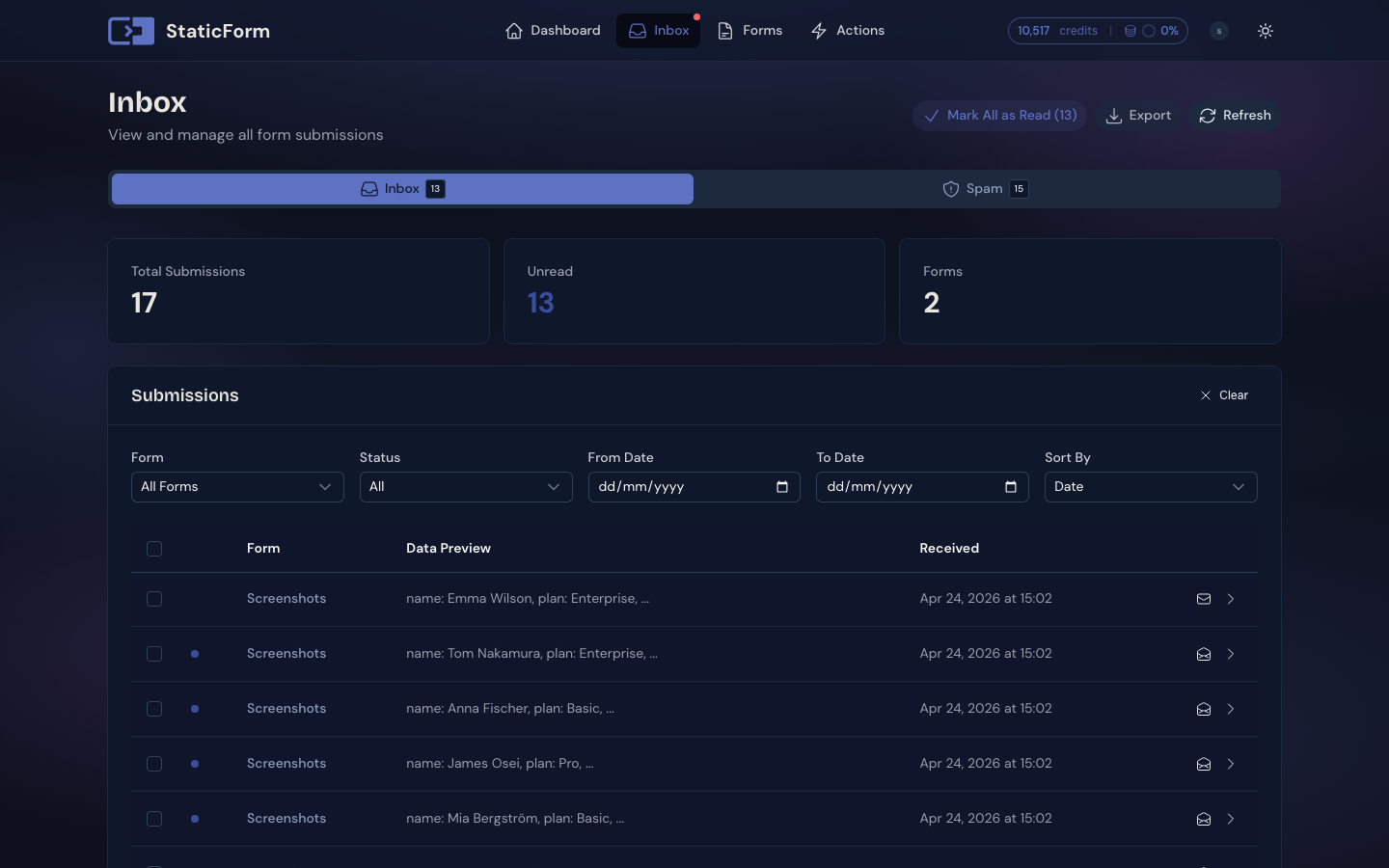
Every submission in one place
All form submissions land in your inbox with read/unread tracking, timestamps, and full submitted data. Export to CSV whenever you need.
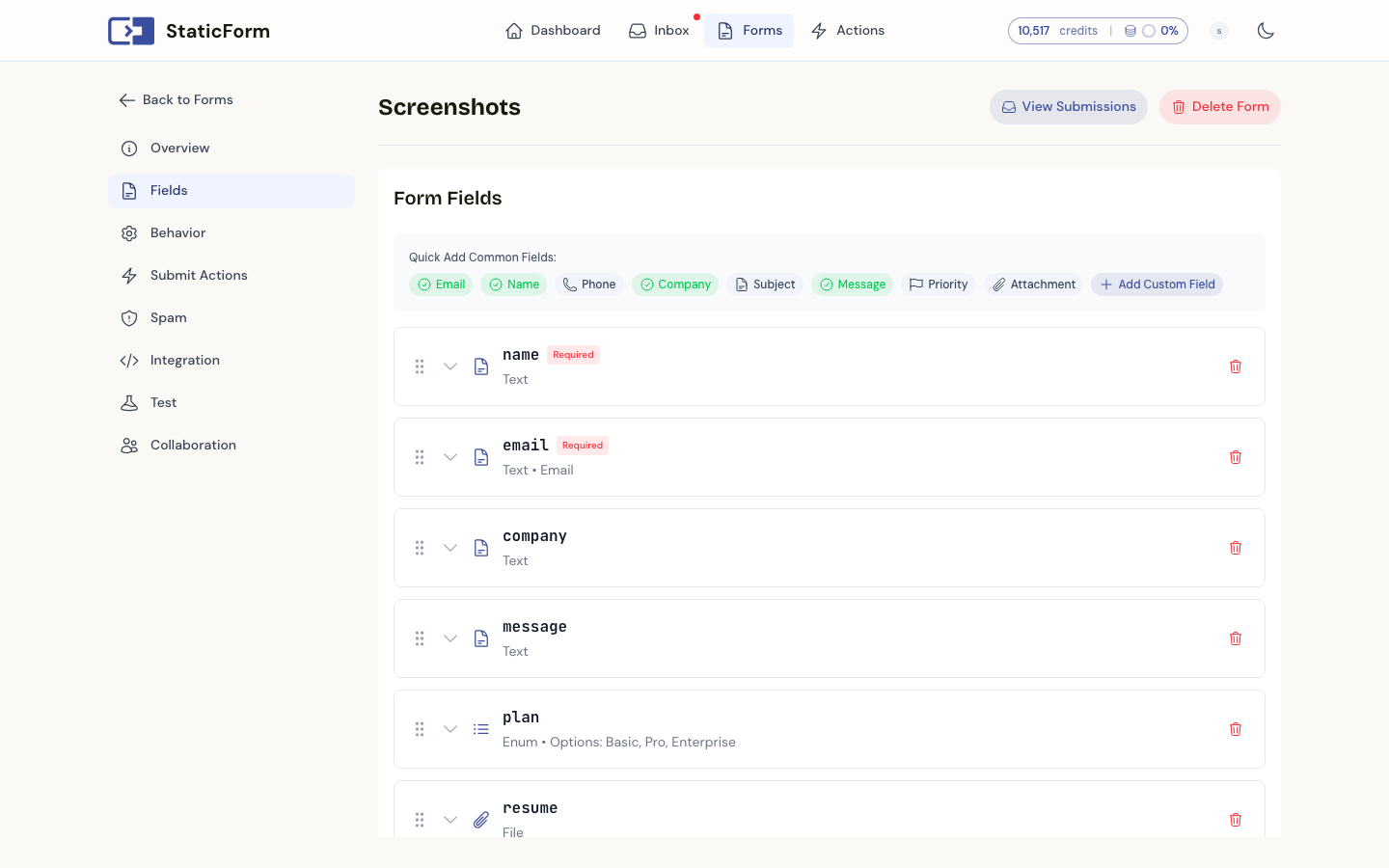
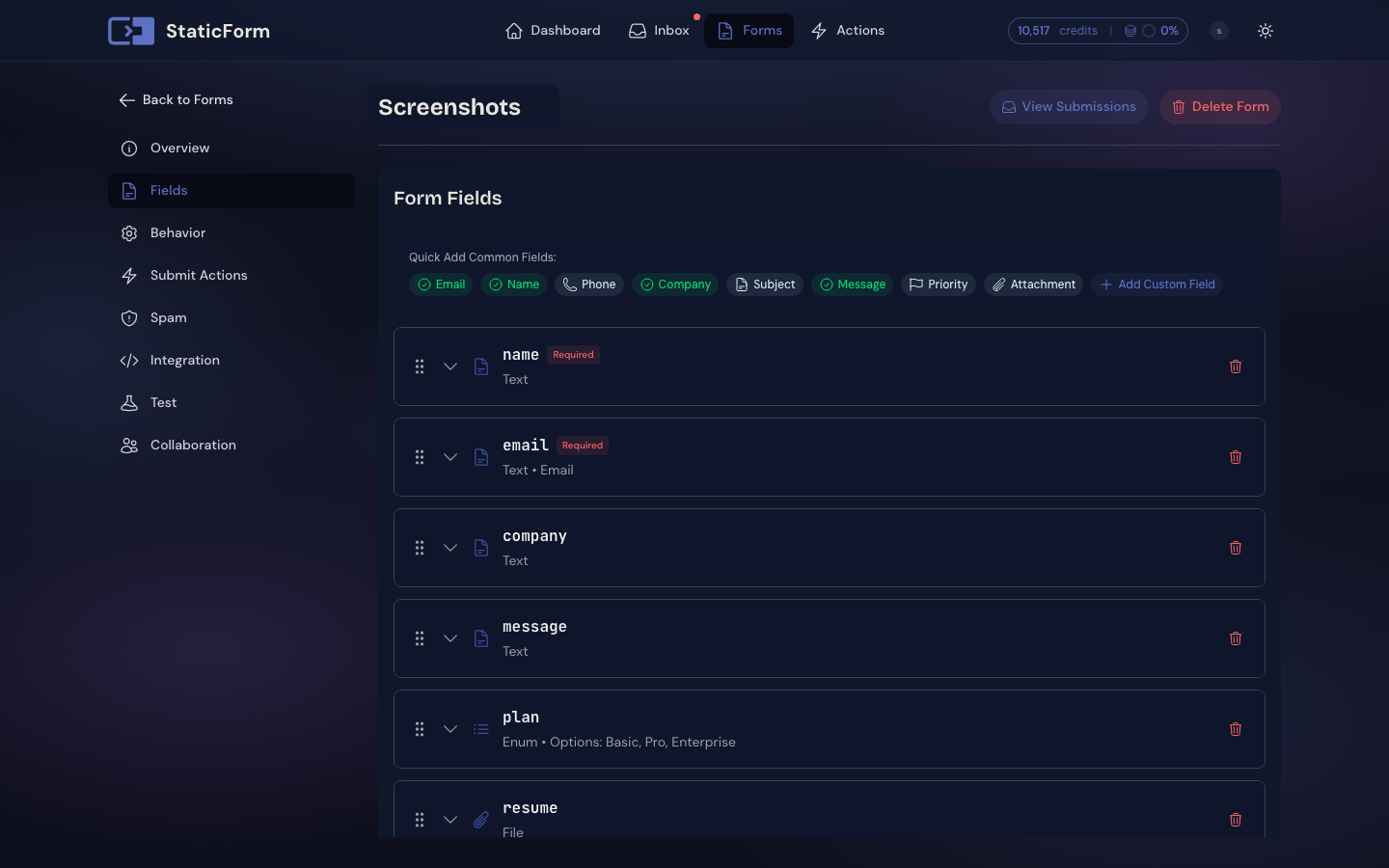
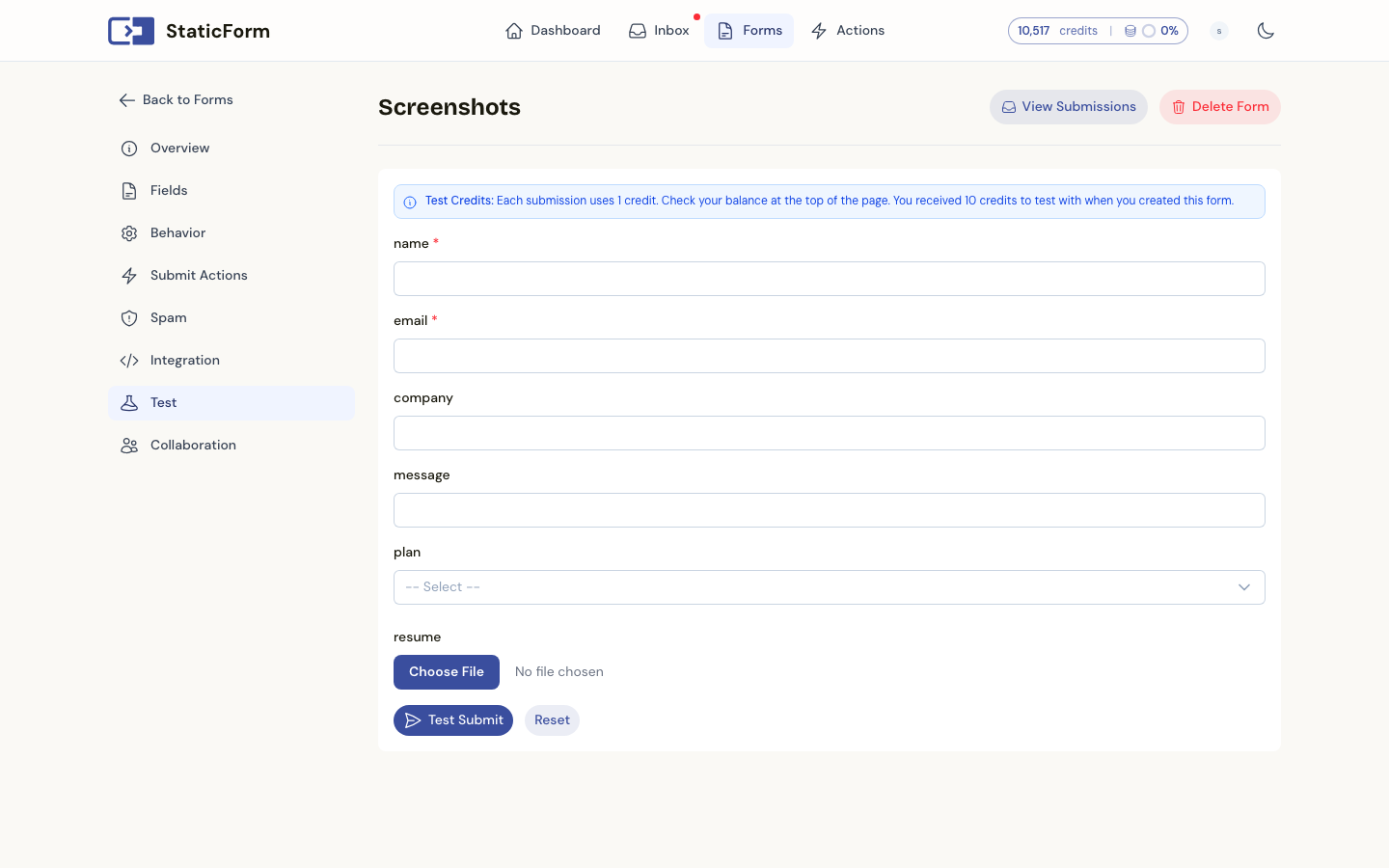
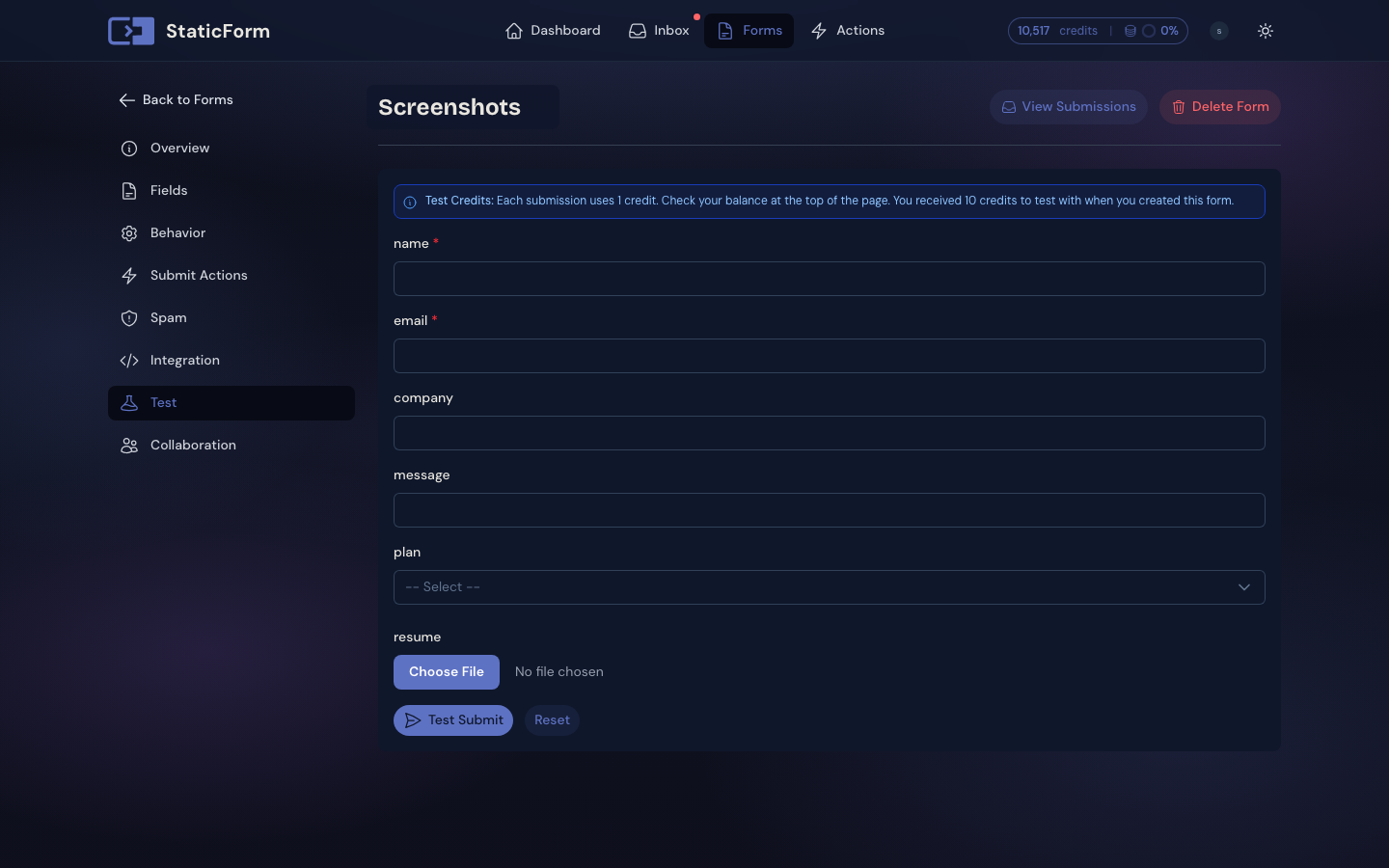
One script tag.
Your form, fully handled.
Add staticform.js to your page and attach it to your form. Inline validation, loading states, CAPTCHA, and success behaviour are all handled automatically.
Contact us
staticform.js handles this automatically
~7.5 KB script · zero dependencies · works with any HTML form
Inline validation errors
API errors map to the matching data-sf-error element automatically. No code needed.
Built-in success states
Button turns green, form swaps to a message, or a banner appears. Pick a mode, no extra code needed.
CAPTCHA built in
reCAPTCHA v2/v3, Cloudflare Turnstile, and hCaptcha. The helper auto-loads the provider script.
No page reloads
Submissions go through fetch. Users stay on the page. No backend code.
Lifecycle events
sf:submitting, sf:success, sf:error hooks let you wire up custom states and analytics.
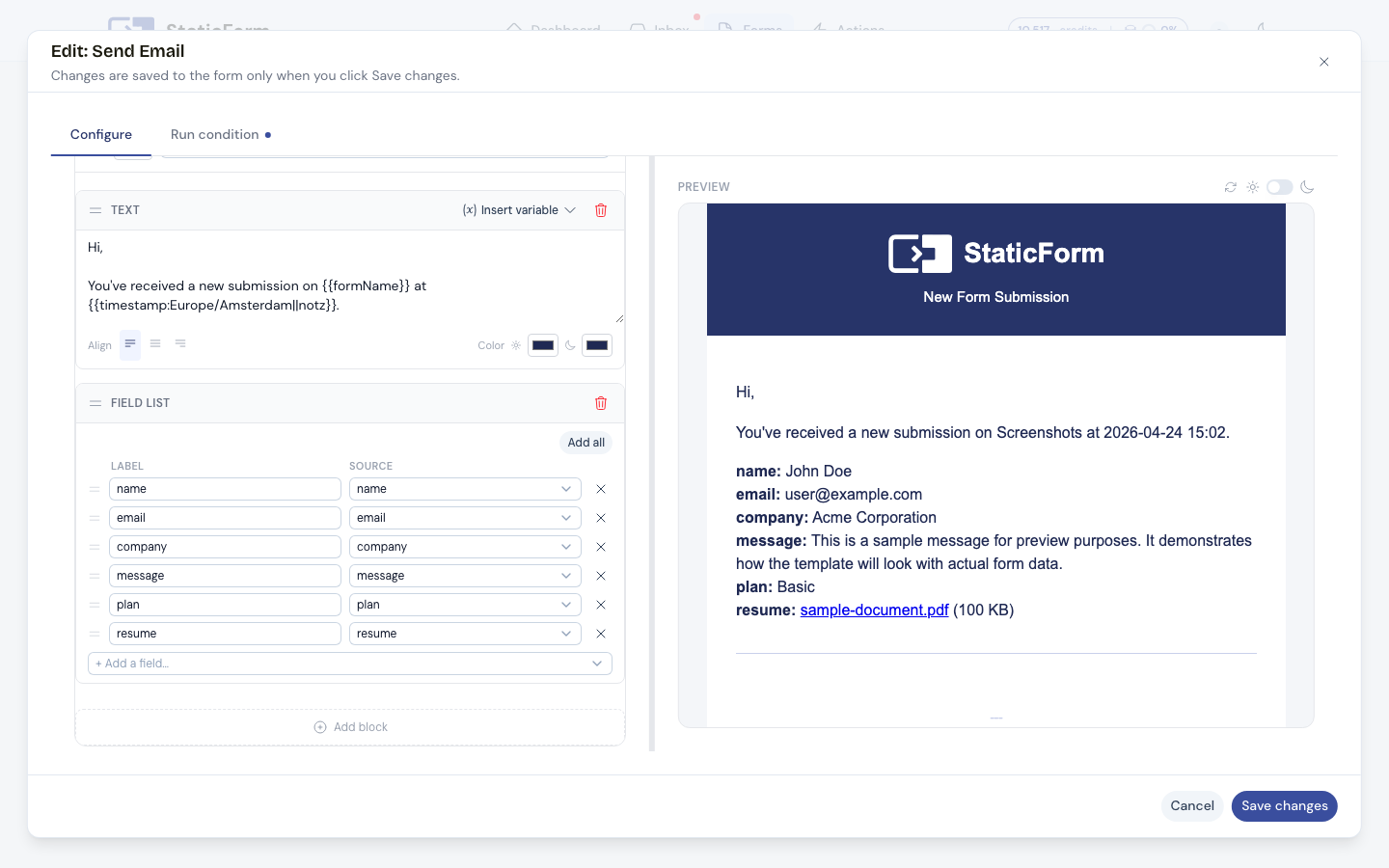
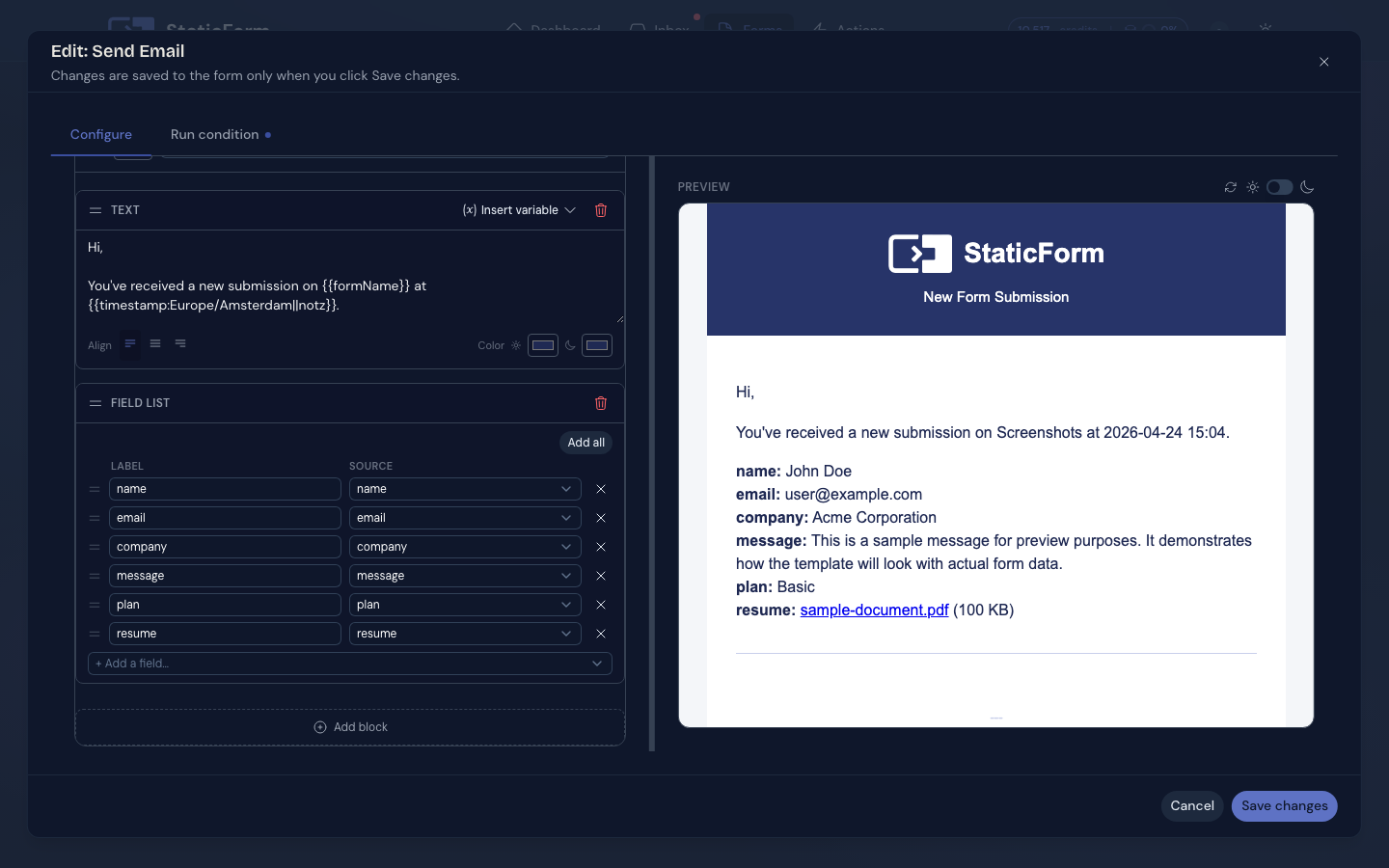
Visual email builder with live preview. Insert submission fields as variables, apply your own branding and logo. Send from your own domain or SMTP server.
Google Sheets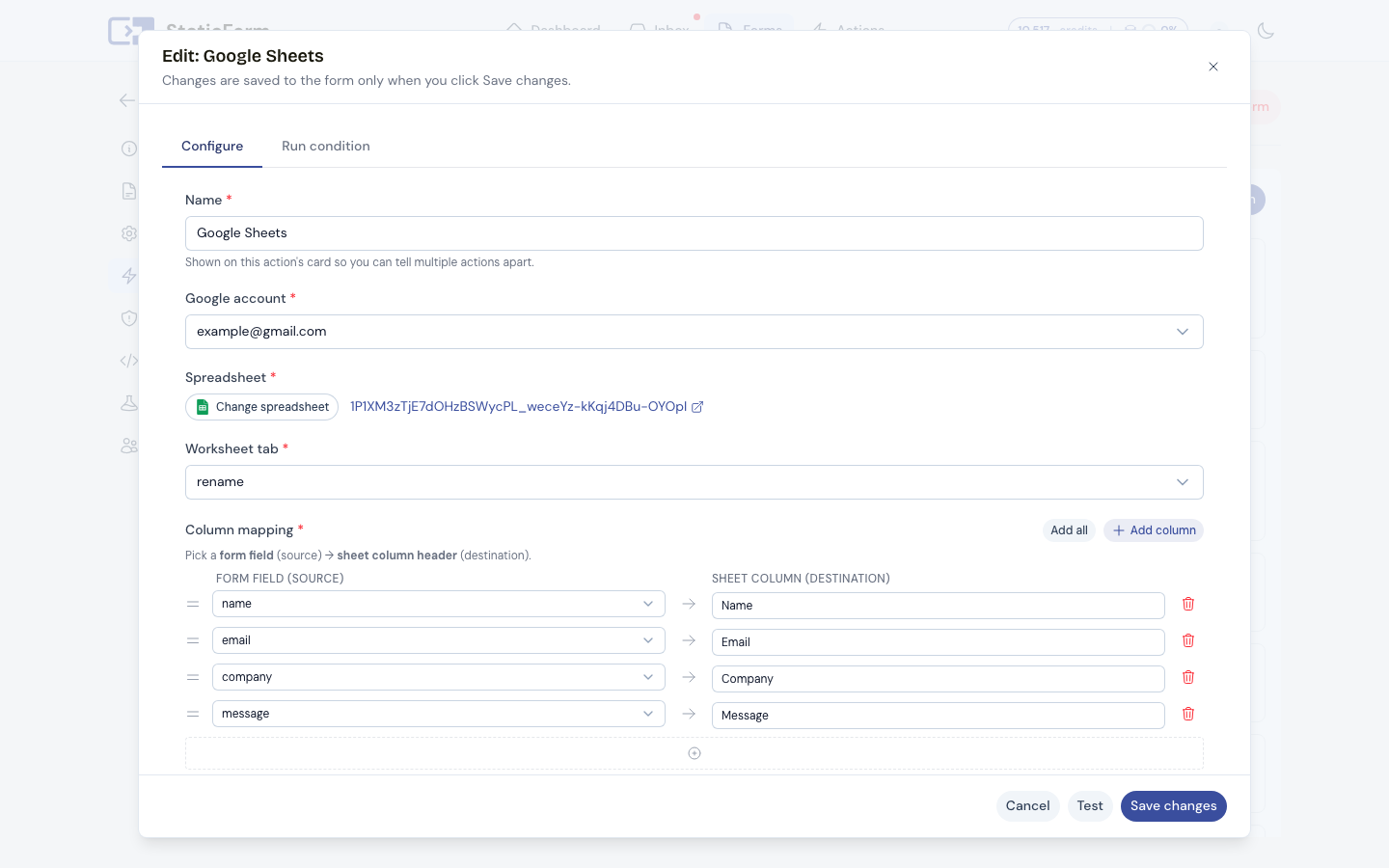
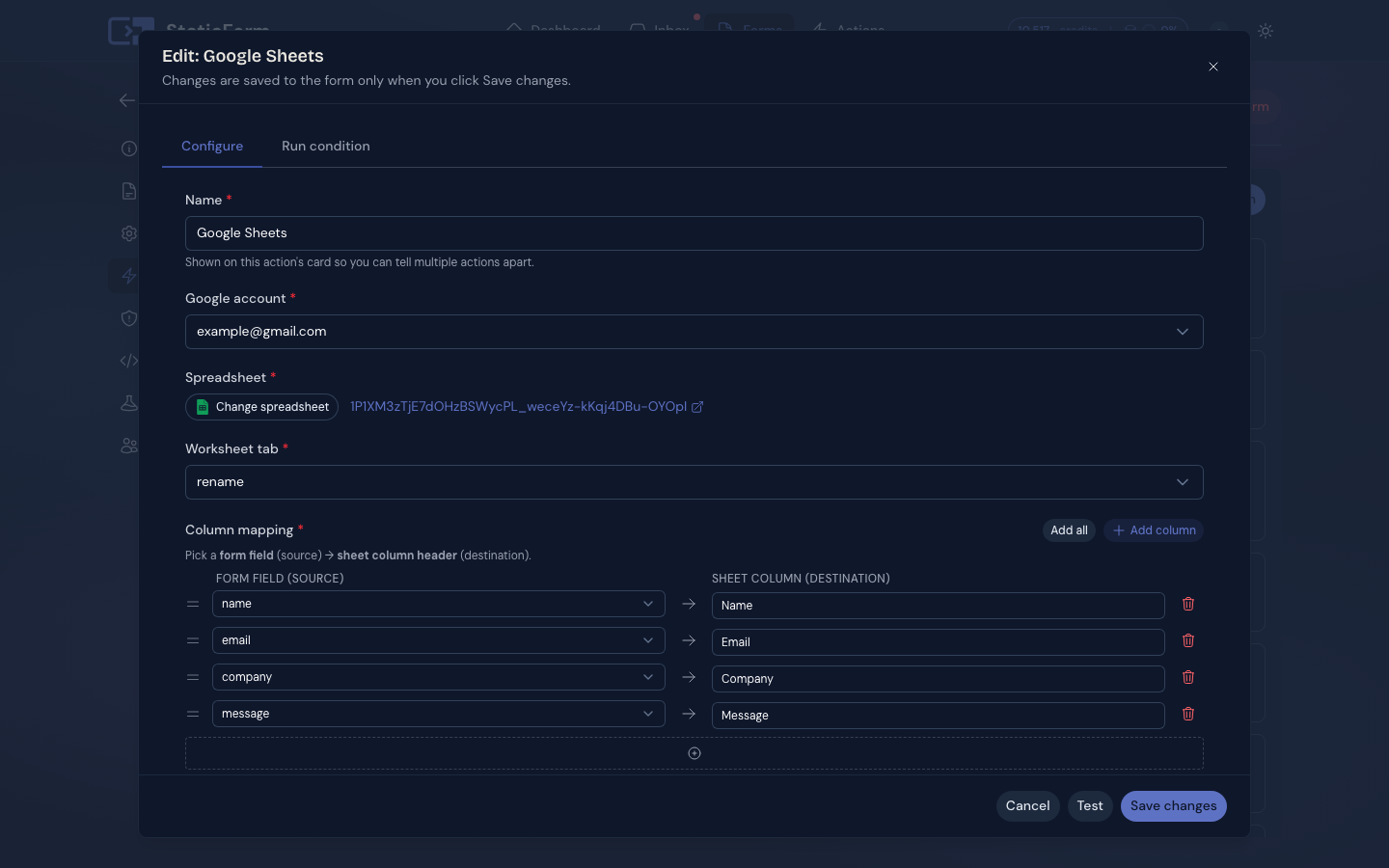
Map any field to a spreadsheet column. New rows appended automatically on every submission.
Slack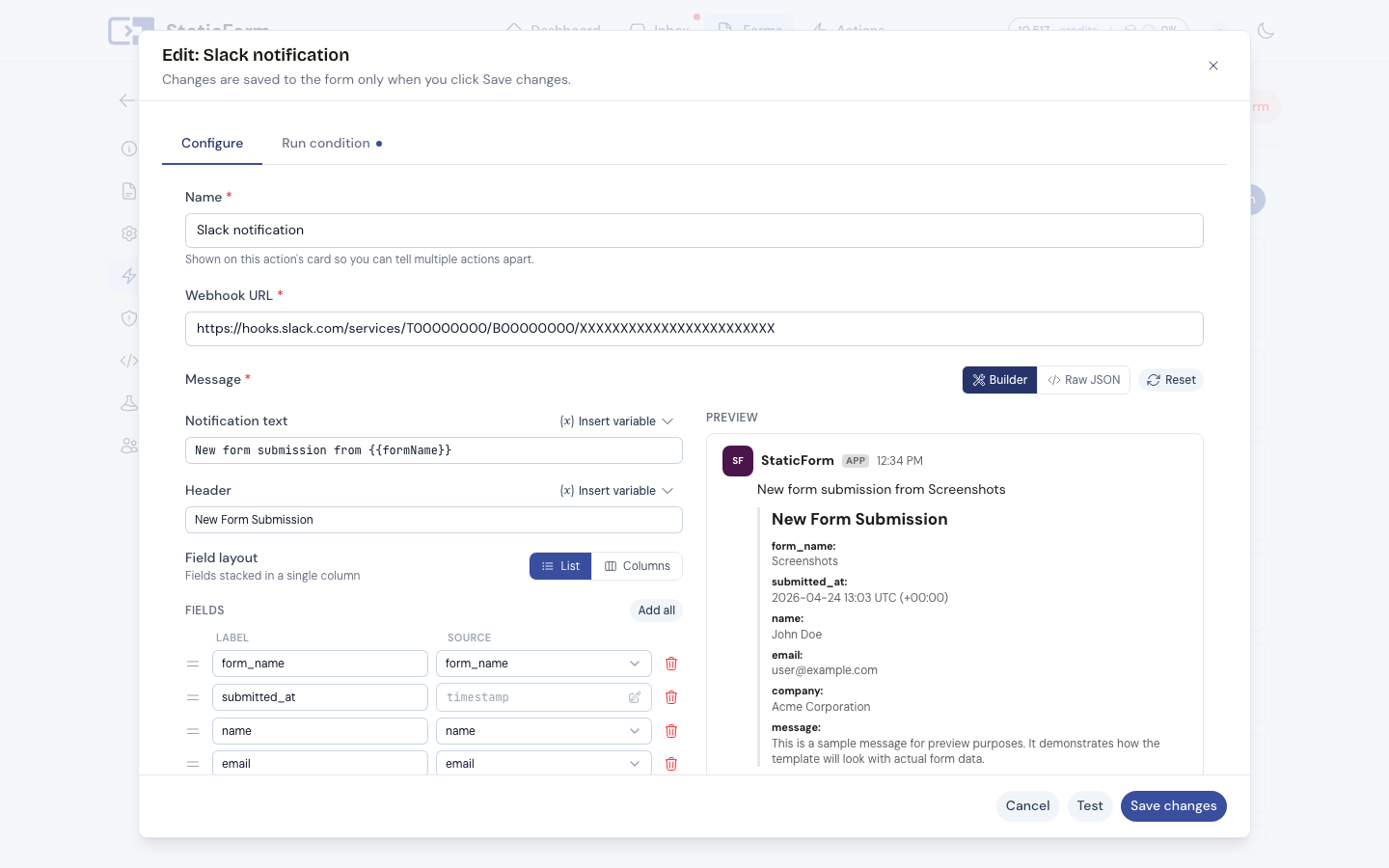
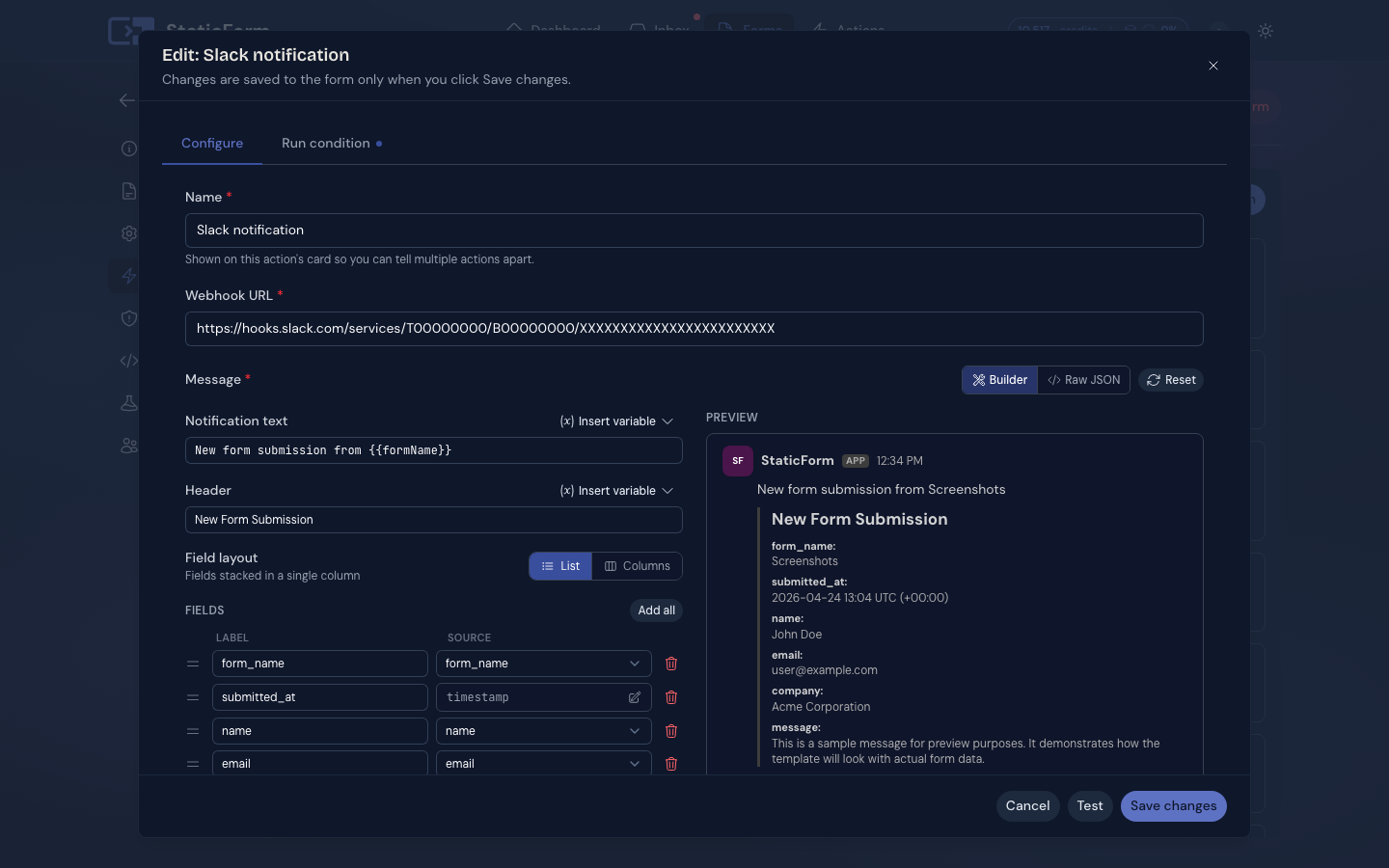
Build the message visually with a live preview. Works the same for Discord and Teams.
Contact Form Leads| name | message | created_at | ||
|---|---|---|---|---|
| 2 | Sarah Chen | [email protected] | Interested in your pricing | 2025-01-15 09:14 |
| 3 | Liam Torres | [email protected] | Looking for an agency plan | 2025-01-15 11:32 |
| 4 | Mia Bergström | [email protected] | Can we book a demo? | 2025-01-15 14:07 |
| 5 | James Osei | [email protected] | How does spam protection work? | 2025-01-15 16:51 |
| 6 | Anna Fischer | [email protected] | Do you support custom domains? | 2025-01-15 17:23 |
Built for developers. Trusted by agencies.
Whether you're wiring up a form on your own project or managing sites for a roster of clients, StaticForm fits your workflow without adding overhead.
Developers
One script tag and a form endpoint. No backend to write, no server to maintain. Works with any stack.
- Any framework or plain HTML. Astro, Next.js, Nuxt, GitHub Pages. If you can put a form tag or make an API call, StaticForm works.
- Integration panel generates your code. The dashboard produces a ready-to-paste HTML snippet with your endpoint, fields, and validation pre-filled. Includes an AI prompt so you can hand the setup straight to Claude or ChatGPT.
- Webhook for your own pipeline. POST submission data to any URL. Wire it into Zapier, your own API, or a database.
- REST API. Read submissions, manage forms, or build your own tooling on top. Full API access for when the dashboard is not enough.
Agencies
One account for every client. No separate logins, no per-form billing surprises, no explaining a spam charge.
- All clients in one dashboard. Every form across every client site in one place. Tag forms by client or site to find what you need instantly.
- Notifications go to your client. Configure email actions to deliver directly to them. They get the leads, you keep the visibility.
- Send from the client's domain. Verify their domain and send from [email protected]. Emails look like they come from the client, not from a shared form service.
- You know before they ask. Execution logs and failure alerts mean you fix broken actions before your client notices anything is wrong.
- Flat pricing, unlimited forms. Add clients without adding cost. No per-submission billing. Spam never inflates your usage.
Pay for features, not submissions.
Most form tools
Charge per submission and count spam against your quota. At $10/mo for 200 submissions, 70% is spam. That's 140 wasted and 60 real leads before your form stops.
StaticForm
Charges a flat monthly fee for the spam filter and integrations. Submissions are not metered. Every real lead is stored and delivered, no matter how many you get.
Email actions and storage are capped because they have real per-unit costs. Starter: 25,000 emails/mo and 2 GB. Pro: unlimited emails, 20 GB, and advanced features including attachments, Google Sheets, Notion, and conditional actions. Emails sent via your own SMTP connection don't count toward the limit on any plan.
Billing:
Starter
Unlimited submissions
Every real lead stored and delivered. Spam blocked before it counts.
- Unlimited webhooks
- Full email branding & customization
- Custom email sender (domain or SMTP)
- 15+ spam filters
No payment method required
Pro
Unlimited submissions
Every real lead stored and delivered. Spam blocked before it counts.
- Everything in Starter
- Email attachments (static & submitted files)
- Google Sheets integration
- Notion integration
- Conditional submit actions
- Priority support
No payment method required
All plans include
Unlimited submissions
No quota. No overage. Your form never pauses mid-month.
Unlimited forms
As many forms as you need, across as many sites.
10+ spam checks
IP reputation, email domain, pattern detection. Spam is blocked before it counts against anything.
Submission inbox
Every lead stored safely in Europe. Still there even if your email delivery goes down.
Failure alerts
Notified the moment a webhook or email action fails. You know before your client does.
Execution logs
Full history of every action on every submission. See exactly what ran and what didn't.
Unlimited webhooks
Slack, Discord, Teams, custom endpoints. No per-action fees.
Full email customization
Visual builder, your own branding, field variables like {{name}} in subject and body.
Custom email sender
Send from your own domain (DKIM via SES) or any SMTP server. Emails via SMTP don't count toward the monthly limit.
7-day free trial
Try everything. No payment method required. Add one after your trial to continue.
Frequently asked questions
How long does it take to set up a form?
About 5 minutes. Create a form in the dashboard, copy the endpoint URL, and point your HTML form at it. No backend to write and no server to configure. The dashboard generates a ready-to-paste HTML snippet with your endpoint pre-filled.
Does StaticForm work on static websites?
Yes. StaticForm was built for static sites. GitHub Pages, Netlify, Vercel, Cloudflare Pages, any static host. Your HTML form submits to a StaticForm endpoint and every submission lands in your dashboard with no server required on your end.
Which frameworks and site builders does it support?
Any framework or plain HTML: Astro, Next.js, Nuxt, SvelteKit, Gatsby, Hugo, Jekyll, 11ty, WordPress, Webflow. If it can render an HTML form tag or make an HTTP request, it works with StaticForm.
Do I need to know how to code?
Basic HTML is enough for most setups. The dashboard generates a ready-to-paste snippet with your endpoint, fields, and redirect URLs pre-filled. It also includes an AI prompt you can hand straight to Claude or ChatGPT to complete the integration for you. If you can copy and paste HTML, you can set up a form. JavaScript is optional: the form works without it, but if you want inline field validation or AJAX submission, the API supports that too.
Why does spam not count against my plan?
Spam is blocked by the spam filter before it reaches your inbox or triggers any email actions. Blocked submissions are stored in a separate spam folder so you can audit them, but they never consume your email action allowance or storage. You pay for features and infrastructure, not for abuse that was never meant to reach you.
How does spam protection work?
Every submission runs through 10+ automated checks: honeypot traps, IP reputation and datacenter detection, disposable email detection, invalid MX record checks, domain age, language detection, content pattern analysis, and more. Each submission receives a score and spam is moved to a separate folder automatically. Manually marking a submission as spam improves detection for your forms going forward. reCAPTCHA v2, reCAPTCHA v3, Cloudflare Turnstile, hCaptcha are also supported if you want an additional layer.
What is an email action and what does the monthly email limit cover?
An email action is something you configure on a form that sends an email each time a submission arrives. You can use it to notify yourself, forward the lead to a client, send a confirmation to the person who submitted, or all three at once with separate actions per recipient. Each email sent through StaticForm counts toward the monthly limit. The Starter plan includes 25,000 email actions per month across all your forms combined. Emails sent via your own SMTP connection do not count toward this limit, since StaticForm is not handling the delivery.
What is the difference between Starter and Pro?
Both plans include unlimited submissions, unlimited forms, 10+ spam checks, webhooks, a submission inbox, failure alerts, execution logs, full email customisation, and a 7-day free trial. The main differences: Pro includes unlimited email actions (Starter caps at 25,000 per month), 20 GB file storage instead of 2 GB, Google Sheets and Notion integrations, conditional submit actions that route or filter submissions based on field values, email attachments, and priority support.
What happens if I exceed 25,000 emails on Starter?
Email action overages are billed at €0.001 per email above 25,000. Stripe calculates and charges this automatically at the end of your billing period. You can disable overage billing in Settings if you prefer email actions to simply stop rather than incur extra charges. Alternatively, connect your own SMTP server: emails routed through your SMTP connection do not count against the monthly limit at all. If you regularly exceed the limit, upgrading to Pro is also an option as Pro includes unlimited email actions.
Is there a free trial?
Yes. Every new account starts with a 7-day free trial. No payment method is required to start. Cancel before the trial ends and you pay nothing. If you have previously trialed StaticForm, the trial is skipped and your subscription begins immediately.
Can I cancel at any time?
Yes. Cancel from your account settings at any time. Your subscription stays active until the end of the current billing period. No cancellation fees and no hoops to jump through.
Can I see what happened to each submission?
Yes. Every action on every submission is logged: what ran, what it sent to, the result status, the timestamp, and the full error detail if something went wrong. All submissions are saved in Europe the moment they arrive, so even if an email action or webhook fails, the submission is still in your dashboard. Failed actions can be retried directly from the submission view.
Will I be alerted when something goes wrong?
Yes. The moment a submit action ends in a failed state, you receive an email with the form name, the action, the target, and the exact error. It links directly to the failed submission so you can retry immediately. You find out before your client does. Failure alerts can be turned off in Settings.
Can I route submissions to Slack, Discord, Teams, or Google Sheets?
Yes. StaticForm has built-in integrations for Slack, Discord, and Microsoft Teams with a visual message builder and live preview. Google Sheets is supported via OAuth: connect your Google account and every submission is appended as a new row automatically. Webhooks work with any HTTP endpoint, so you can connect to Zapier, Make, your own API, or any other tool.
Can forms accept file uploads?
Yes. Add a file input to your form and StaticForm handles the upload. Files are stored securely and accessible from the submission detail view in your dashboard. The maximum file size is 25 MB per file. On Pro, files can also be forwarded as email attachments. Storage quota depends on your plan: 2 GB on Starter, 20 GB on Pro.
How many forms can I create?
Unlimited on all plans. Create as many forms as you need across as many websites. No per-form fees.
Is StaticForm GDPR compliant?
Yes. StaticForm is hosted in Europe and all submission data is stored there. We do not sell or share your data with third parties. You can delete individual submissions or entire forms from your dashboard at any time. StaticForm does not inject cookies or third-party scripts onto your end users' browsers.
Can I use one account for multiple client websites?
Yes. One StaticForm account covers all your forms across all sites. Tag forms by client or site to keep things organised. Email actions can go directly to your client so they receive leads without needing access to your dashboard. Flat pricing means adding clients does not add to your cost.
How is StaticForm different from other form backends?
StaticForm is built around four things most form backends get wrong.
- Spam filtering. 10+ checks run on every submission before it reaches your inbox or triggers any actions. At the industry average of 70% spam, competitors give you around 60 real leads from a 200-submission plan before it stops. StaticForm gives you every real lead regardless of how much spam arrives.
- Observability. Every action on every submission is logged with its result, recipient, and error detail. If a webhook fails or an email bounces, you get an alert and can retry from the dashboard. No silent failures.
- Fair pricing. A flat monthly fee with no per-submission metering, so traffic spikes and spam never inflate your bill.
- Easy integration. The dashboard generates a ready-to-paste HTML snippet and an AI prompt you can give to Claude or ChatGPT to complete the setup for you.
Questions? We're
actually here.
Ask about pricing, integrations, GDPR compliance, or anything else. We reply within one business day.
Message sent.
We'll get back to you within one business day.
get started
Your next real lead is
waiting to arrive.
Set up a form in 5 minutes. Spam blocked automatically. Every real submission stored, delivered, and logged.
Ready to get started?
Add forms to your site in minutes
Honestly didn't realise how much spam we were getting until it stopped. Our sales team stopped complaining about the contact form, which is probably the best thing I can say.
Head of Growth
I've set up Formspree, Netlify Forms, a couple of others. This was the first time I didn't have to read the docs to get it working.
Frontend Developer
Had a client ask why they hadn't heard from anyone in two weeks. Turns out the email action had been failing silently. Now I get the alert, not the angry phone call.
Agency owner
We wanted leads in Slack and in our spreadsheet without building anything. Took about ten minutes to set up. It's been running for months without us touching it.
Product Manager
My main worry was false positives. We can't afford to miss real enquiries. Been using it for six months and I can count the false positives on one hand.
Co-founder
Our email provider went down for a few hours and I panicked. Logged into StaticForm and every submission was there. That inbox feature is the thing I didn't know I needed.
Marketing Manager
Used by